
A
A quiet backdrop. Soft light. All attention on your product.
The product ad workshop
Create two visual directions from one product photo, then turn your favorite into a video. Work here or connect Claude through MCP. Choose your model, clip length and credit limit before generating.
An AI-created example product, two directions made from that same source, and a clip made from the lifestyle version in our test run. Inspect the lettering and movement yourself; these are examples, not a guarantee of fidelity. Our September 7, 2026 run used Nano Banana 2 for the two images (3 credits each) and Seedance 1.5 Pro, since retired by its provider, for a 4-second, 480p clip (6 credits). The 12-credit total is this test receipt; your selected model, duration, plan and offers determine your current quote.
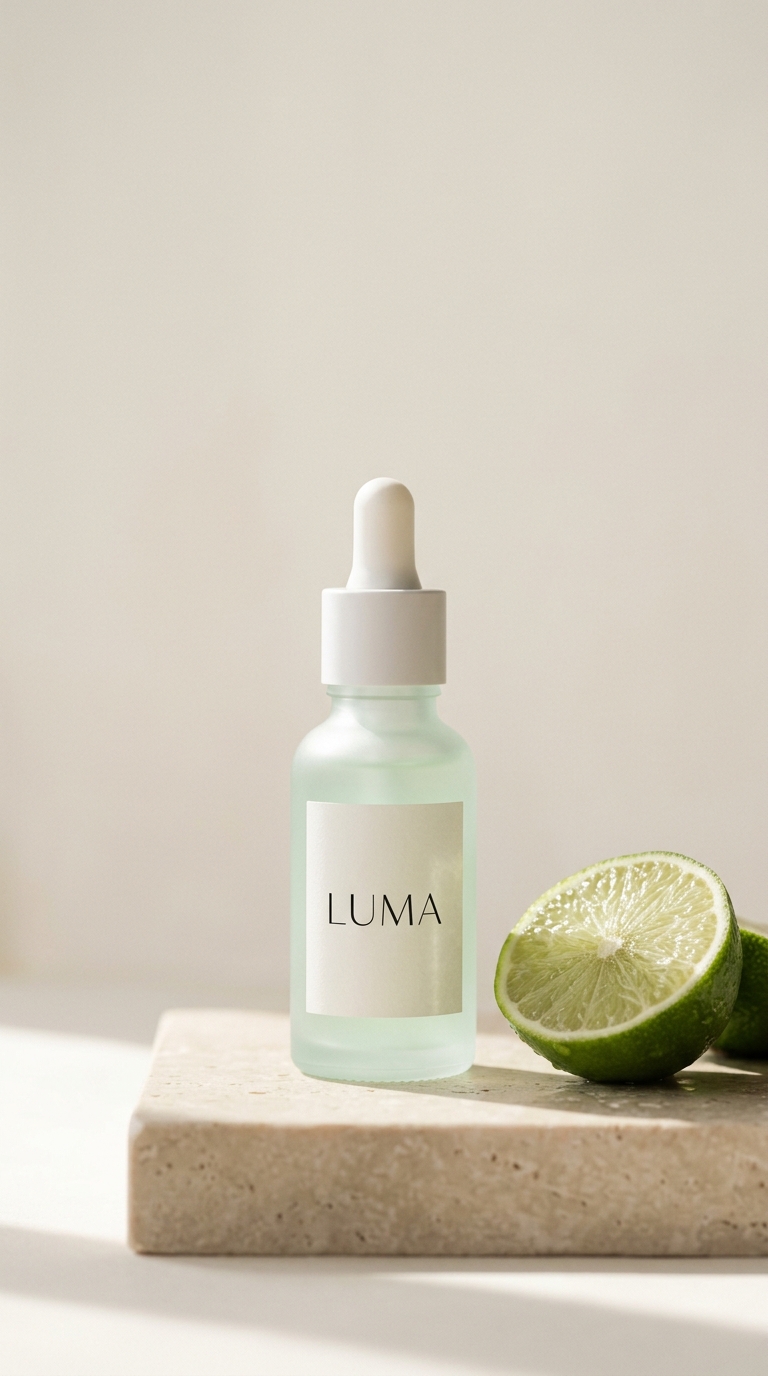
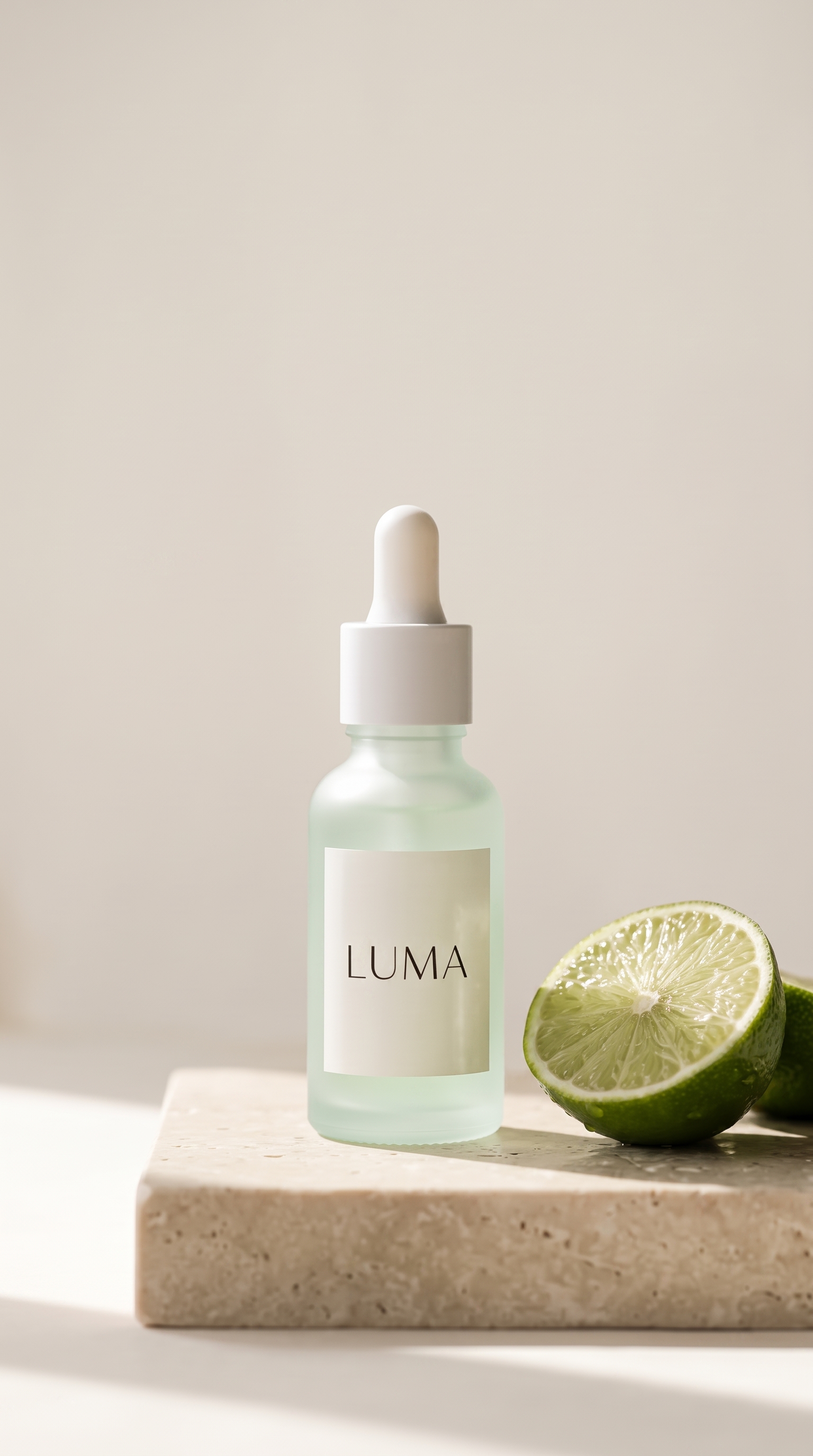
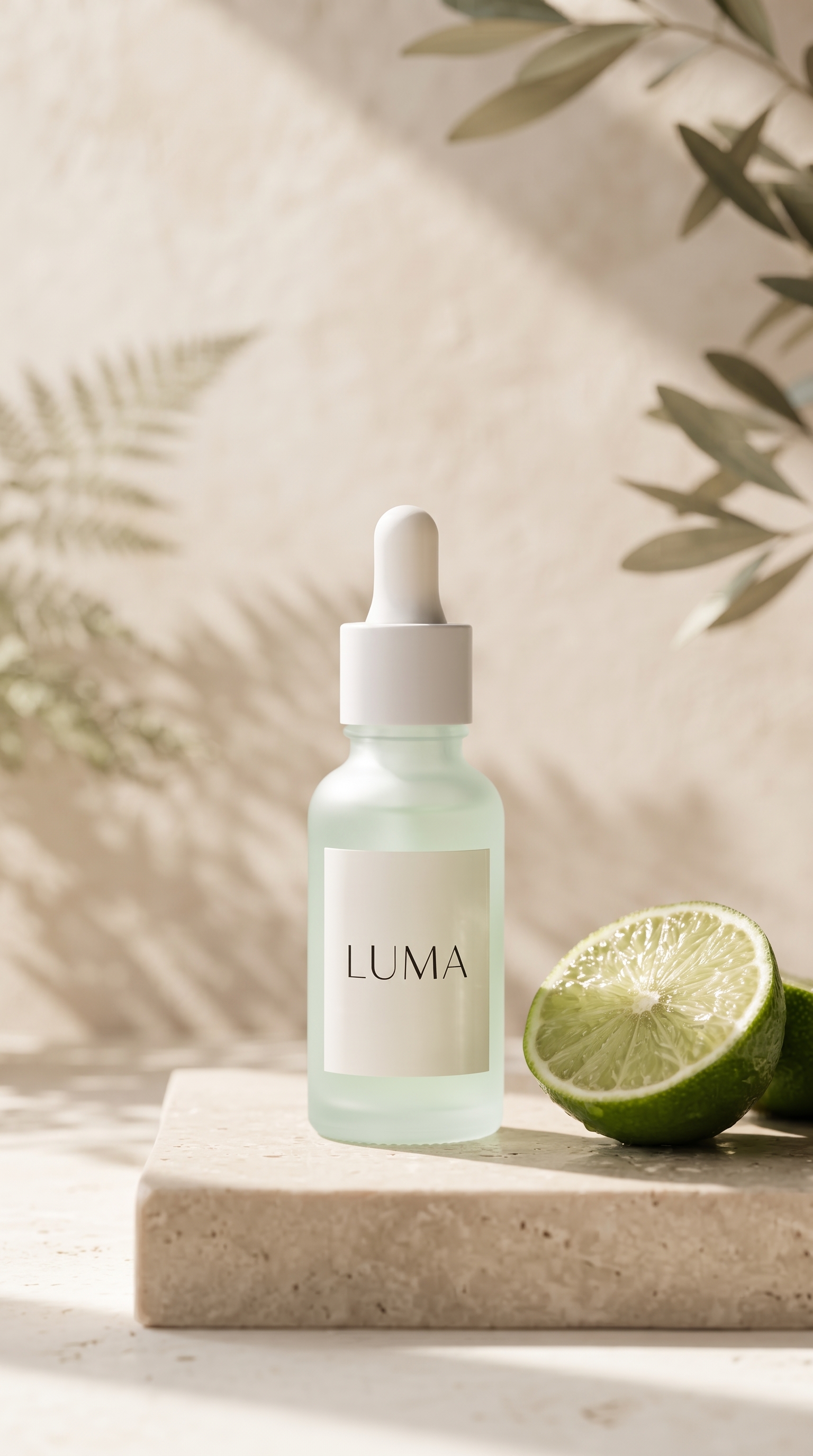
Generate each version in turn, compare them, then choose one for the clip.
A
A quiet backdrop. Soft light. All attention on your product.
B
Natural texture and morning light give the product a setting.
A slow push-in and gentle light movement. Choose an image above first. Audio depends on the model; Veo includes generated audio.
Complete both directions to compare before making your clip.
A successful render still needs a human review. Compare both images with your source, then watch the full clip.
If you spot a problem, edit the image before making another clip. More resolution alone does not guarantee accurate labels.
From reference to result
Use the workshop above for a visual workflow, or let Claude guide each step in a conversation. Claude Imagine connects your account to the rendering models; Claude helps prepare prompts and retrieve results.
Follow the Claude MCP setup, then sign in here and upload a sharp photo showing the whole product. Describe the packaging details that matter. Copy to Claude carries the reachable reference URL into your conversation.
Ask Claude to call plan_product_ad with your selected model, duration and total credit limit. It returns two image directions and an itemized quote without starting a render. Approve the plan only when all three generations fit your budget.
Have Claude run the two image edits one at a time, both from the original photo. Compare the studio and lifestyle results against your packaging. Tell Claude which completed image to animate; the workflow should pause for your choice.
Recheck the video quote before starting. Ask Claude to cap each generation at the approved step price or remaining budget, whichever is lower, and count retries too. Save task IDs so an interrupted conversation can retrieve results without resubmitting.
The MCP plan guides spending across steps; it does not reserve one shared budget for the conversation. Each generation checks its own credit cap. See the MCP tool reference for request fields and receipt recovery. For connector settings in Claude, see Anthropic's remote MCP guide.
Clean studio gives the product a quiet backdrop and soft light. Everyday ritual places it in a lifestyle setting with natural texture. Both images start from your original reference, so the second version does not inherit edits introduced in the first.
The selected image becomes the video's starting frame. The motion brief asks for a slow camera push-in and restrained lighting changes. These instructions help define the shot; they cannot guarantee unchanged lettering or product geometry. Use the LUMA example above to compare the actual source, edits and full clip.
This workshop offers every image-to-video model in our current catalog at its default quality. Choose the model and seconds above to update the quote. The two image directions use a vertical 9:16 composition; H3 and Kling follow the selected image's aspect ratio.
| Video model | Clip length | Workshop quality |
|---|---|---|
| H3 Max Turbo | 5–15 seconds (1-second steps) | 480p |
| Grok Imagine | 6–30 seconds (1-second steps) | 480p |
| Seedance 2.0 Mini | 4–15 seconds (1-second steps) | 480p |
| Veo 3.1 Fast | 4 / 6 / 8 seconds | 720p |
| Kling 2.5 Turbo | 5 / 10 seconds | Pro |
Need other quality settings or a text-to-video starting point? Open the general video generator. For account plans and credit packs, see pricing. Always use your current quote when deciding what to spend. For a launch video built from motion graphics rather than generated footage, see our Opus 5.5 video examples.
Claude plans the work and calls Claude Imagine through MCP. The selected image and video models render the media. You can also complete the workflow directly on this page without using Claude.
The rendering tools need a reachable image URL; a chat attachment alone is not enough. Sign in, upload the original photo in this workshop, then use Copy to Claude to include its URL, your product brief, selected video model, duration and budget.
Yes. Choose a model first, then a supported duration in the clip-length selector. Available lengths differ by model; the table above shows the current options. Changing the length updates the quote without raising your budget limit.
No. The two image generations cost credits. An eligible account can use its first-clip offer for one H3 Max Turbo video at 5 seconds and 480p. Longer clips, other models and later videos are paid. Sign in to see the exact account quote before generating.
It starts a separate workflow in Claude using your original photo and brief. It does not transfer completed browser steps or their remaining budget. To recover existing work, open My Works or ask Claude to retrieve the saved generation receipts before starting anything again.
Keep the task receipt and check its status before submitting another request. Checking an existing task does not generate another image or video. A retry is a new generation and needs a fresh quote that fits your remaining budget. A confirmed failed task releases its reserved credits.
You receive two product images and a single video clip from the image you choose. This workflow does not assemble multiple shots, add captions or build an end card. Inspect product shape, colors and lettering throughout the clip, then use an editor for any additional ad elements.